Urdu Voice Typing: Speak Naturally and Type Urdu Instantly
🎤 Urdu Voice Typing Pad — Try It Live
Press the microphone, speak in Urdu, and your words will be typed here automatically.
Words: 0
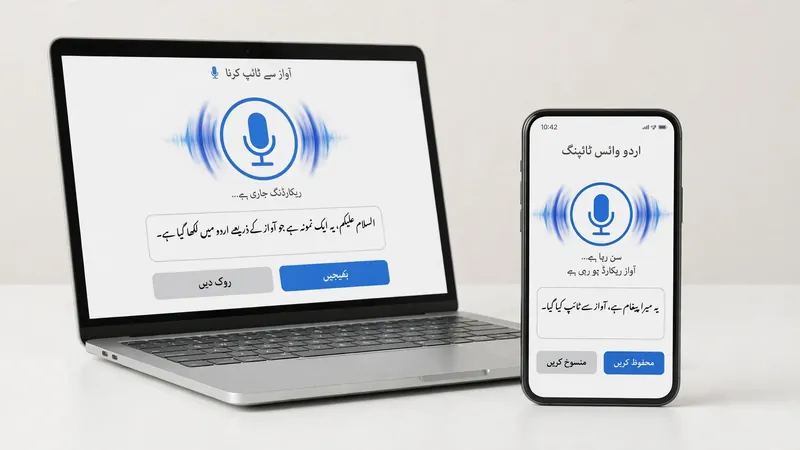
Urdu Voice Typing lets you speak in Urdu while your device types your words instantly. It uses AI to recognize your voice and convert it into text in real time. This feature helps students, professionals, writers, and anyone who prefers speaking over typing. You can use it on Android phones, iPhones, Windows PCs, and Google Docs. It saves time, reduces typing effort, and makes writing faster and easier for everyday tasks.
What Is Urdu Voice Typing?
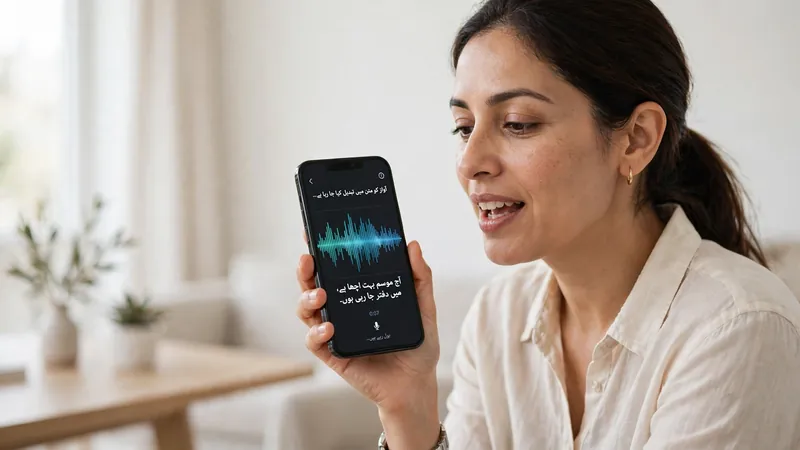
Urdu Voice Typing is a live voice input feature that converts spoken Urdu into written text as you speak. Instead of pressing every key, you simply talk into your device’s microphone. Modern speech recognition systems analyze your voice and display your words almost instantly. Many keyboards and applications now support this feature, making Urdu writing easier than ever.
Google’s speech recognition technology combines Artificial Intelligence (AI) and Natural Language Processing (NLP) to understand spoken language more accurately. These technologies identify words, sentence structure, and context before producing readable Urdu text. According to Google, voice typing continues to improve through advanced language models and speech recognition research.
How Live Voice Typing Works
Live Urdu Voice Typing starts when you tap the microphone icon on a supported keyboard or application. The microphone captures your speech. Speech Recognition then converts sound into digital signals. AI and NLP analyze pronunciation, context, and Urdu language patterns. The system predicts the correct words and displays them in real time. Better microphones and clear speech improve recognition accuracy.
Benefits of Speaking Instead of Typing
Speaking is often faster than typing on a keyboard. Urdu Voice Typing helps you write messages, notes, and documents in less time. It also supports hands-free typing when your hands are busy. People with limited mobility can communicate more easily using voice input. Students and professionals can capture ideas quickly without stopping to type. The result is better productivity, less typing effort, and a smoother writing experience.
How to Use Urdu Voice Typing on Mobile
Most smartphones include built-in voice typing. You only need the right keyboard, microphone access, and Urdu language support. Once you finish the setup, you can speak naturally and see your words appear instantly.
Android
Android users can enable Urdu Voice Typing with Gboard, Google’s official keyboard. Install or update Gboard from the Google Play Store if needed. Open your phone’s Settings, then go to System or Languages & input. Select On-screen keyboard, choose Gboard, and open Languages. Add Urdu if it is not already available.
Next, grant microphone permission to Gboard. Open any app with a text field and tap the microphone icon on the keyboard. Speak clearly in Urdu. Google Voice Typing will process your speech and display the text in real time. If recognition seems slow, check your internet connection because some devices rely on cloud-based speech recognition.
iPhone
iPhone users can use the Apple keyboard with Dictation where Urdu support is available. Open Settings, then General, and select Keyboard. Enable Dictation and add the Urdu keyboard if needed. Allow microphone permission when prompted. Open any messaging or note-taking app, tap the microphone icon, and begin speaking. Keep your iPhone updated because language support and Dictation features improve over time.
Best Practices While Speaking
Speak with clear pronunciation and a natural pace. Avoid rushing through sentences. Use your device in a quiet room whenever possible. Background noise can reduce recognition accuracy. Hold the microphone at a comfortable distance. Maintain a stable internet connection if your device uses online speech recognition. Pause briefly between sentences to improve punctuation and word detection.
How to Use Urdu Voice Typing on Desktop
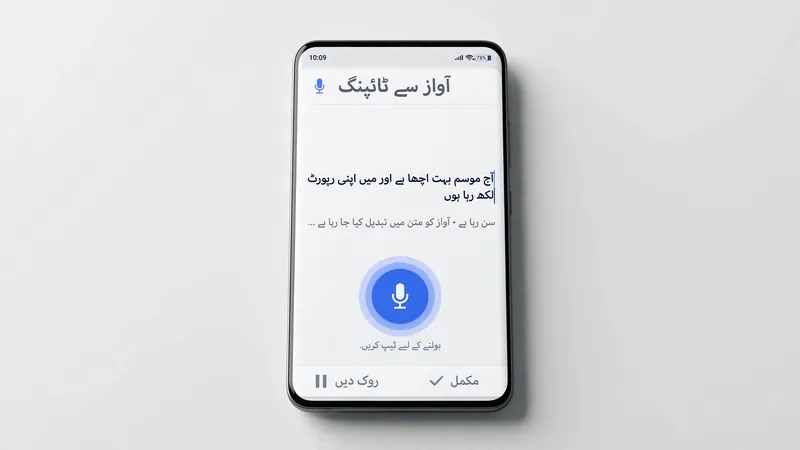
Desktop voice typing works well for emails, documents, and longer writing tasks. A quality microphone and the correct language settings help you achieve better results.
Windows Voice Typing
Windows includes a built-in voice typing feature for supported languages. Connect a working microphone before you begin. Open a text field and launch Voice Typing with the Windows keyboard shortcut, if supported on your version of Windows. Make sure an Urdu keyboard is installed in your language settings. Select Urdu when available, then start speaking clearly. Windows converts your speech into text as you talk. Review the output and make small corrections if needed.
Google Docs Voice Typing
Google Docs offers Voice Typing through the Chrome browser. Open your document in Google Docs and allow microphone access when requested. Select the correct language from the Voice Typing settings if Urdu is supported for your account or region. Click the microphone icon and begin speaking naturally. Your words appear directly inside the document, making it easy to draft notes, articles, and reports without constant typing.
Common Desktop Requirements
Use an updated browser for the best experience. A good-quality microphone captures your voice more accurately. Allow microphone permissions in your browser or operating system. Keep your internet connection stable because many voice recognition features depend on online processing. Also, update your operating system and browser regularly to receive the latest improvements.
Improve Urdu Voice Typing Accuracy
Voice typing becomes more reliable when you follow a few simple habits. Small adjustments can improve word recognition and reduce editing time.
Use the Right Microphone
Choose a microphone that captures your voice clearly. Built-in microphones work for most users, but an external headset often delivers cleaner audio. Position the microphone close to your mouth without touching it.
Speak Naturally
Speak at your normal pace. Pronounce each word clearly. Avoid shouting or whispering. Natural speech helps AI understand your words more accurately.
Reduce Background Noise
Turn off televisions, fans, or loud music before you begin. A quiet environment helps the speech recognition system focus on your voice instead of unwanted sounds.
Choose Correct Urdu Language Settings
Always select Urdu before starting voice typing. The correct language model improves recognition and reduces spelling mistakes caused by language confusion.
Update Your Keyboard App Regularly
Install the latest version of Gboard, your operating system, or other supported keyboard apps. Updates often improve speech recognition, language models, security, and overall performance.
Useful Voice Commands
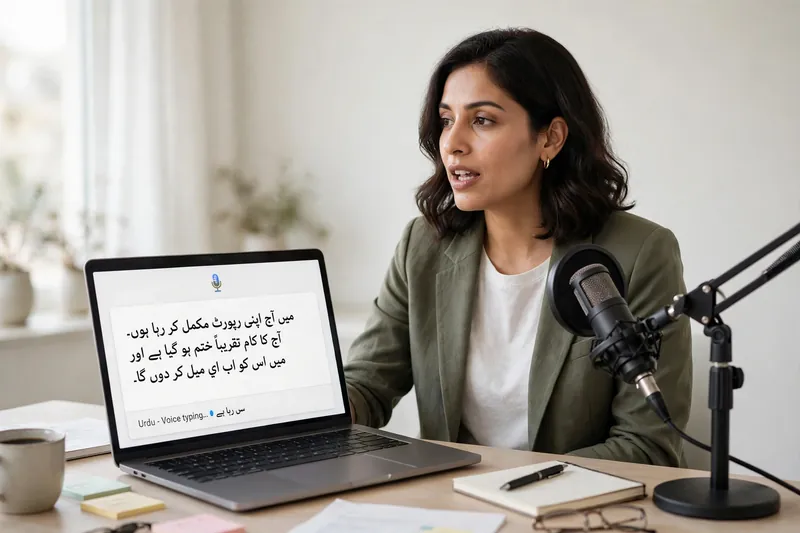
Many voice typing tools recognize simple voice commands in addition to spoken words. These commands help you add punctuation and format text without touching the keyboard. Support depends on your device, operating system, keyboard, and selected language.
Some commonly supported commands include:
- Full stop – Adds a period at the end of a sentence.
- Comma – Inserts a comma to separate ideas.
- Question mark – Ends a question correctly.
- New line – Moves the cursor to the next line.
- Delete – Removes the last word or selected text where supported.
Say each command clearly after finishing your sentence. Pause briefly before giving another command. If a command appears as normal text instead of punctuation, your platform may not support it in Urdu. In that case, add punctuation manually after voice typing. Google, Microsoft, and Apple continue to improve voice command support, so available features may change with future updates.
Common Problems and Solutions
Most Urdu Voice Typing issues have simple fixes. Check the following solutions before trying another app.
Microphone Not Working
Confirm that your microphone works correctly. Grant microphone permission to your keyboard or browser. Restart the app if the microphone does not respond.
Urdu Language Missing
Update your keyboard app and operating system. Then check the language settings again. If Urdu is still unavailable, your device or region may have limited support.
Wrong Words Appearing
Speak clearly at a normal speed. Reduce background noise and select Urdu before starting. Review the text and correct small mistakes as needed.
Voice Typing Stops Suddenly
Check your internet connection if your device uses online speech recognition. Close unnecessary apps and reopen your keyboard or browser. Installing the latest updates can also improve stability.
Frequently Asked Questions
Is Urdu Voice Typing free?
Yes. Many devices offer Urdu Voice Typing at no extra cost through built-in keyboards or supported applications.
Can I use Urdu Voice Typing offline?
Some devices support offline voice typing after downloading language files. Others require an internet connection for better speech recognition. Availability depends on your device and software version.
Which keyboard supports Urdu Voice Typing?
Google Gboard is one of the most popular choices for Android users. Apple Keyboard provides Dictation on supported iPhone models and languages.
Does Urdu Voice Typing work on Windows?
Yes. Windows supports voice typing features, but available languages and functions may vary by version and regional settings.
Why is my Urdu Voice Typing inaccurate?
Poor microphone quality, background noise, incorrect language settings, or unclear pronunciation can reduce accuracy. Speaking naturally and using an updated keyboard usually improves results.
Can I use Urdu Voice Typing in Google Docs?
Yes. Google Docs includes Voice Typing through the Chrome browser. Language support may differ by region and Google account settings, so check the available language list before you begin.
Conclusion
Urdu Voice Typing makes writing faster, easier, and more convenient. You can use it on Android phones, iPhones, Windows computers, and Google Docs with only a few simple steps. A quality microphone, clear speech, and the correct language settings improve accuracy. Start using Urdu Voice Typing today to save time, reduce typing effort, and create Urdu text more efficiently.
Related Guides
Try our free Urdu Keyboard tool to type Urdu online instantly.