
Urdu Keyboard for Android: How to Install, Enable & Use It Easily
📱 Urdu Keyboard for Android — Setup Checklist
Complete each step on your phone and tick the box:
0% complete
Using an Urdu Keyboard for Android makes typing in Urdu simple and fast. This guide shows you how to install the keyboard, enable it, add the Urdu language, switch between languages, and solve common issues with confidence.
Introduction
An Urdu Keyboard lets you type in Urdu on your Android phone with ease. It supports everyday tasks like messaging, emailing, and note-taking in your native language. Many users also prefer it for faster Urdu Typing and clear communication.
This guide explains how to set up an Android Keyboard for Urdu step by step. You will learn how to install an Urdu Typing App, enable the Urdu Language Keyboard, add Urdu as an input language, and switch between Urdu and English. You will also understand common permissions, fix setup problems, and improve your typing experience using your Mobile Keyboard.
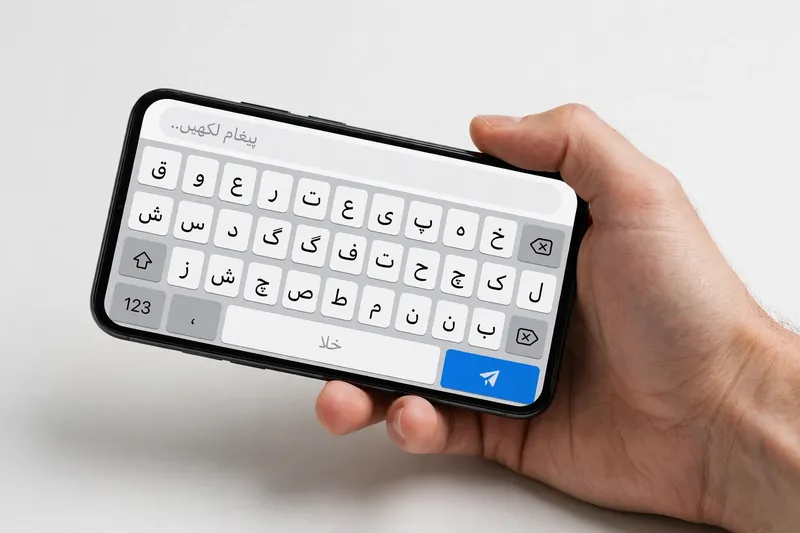
What Is an Urdu Keyboard for Android?
Understanding an Urdu Keyboard
An Urdu Keyboard for Android lets you type in the Urdu script on your phone or tablet. It uses Unicode, the global text standard, to display Urdu correctly across compatible apps and devices. Android supports Urdu through its built-in language input system. This allows you to write messages, emails, notes, and social media posts without changing your device language.
How It Works on Android Devices
Android uses an Input Method Editor (IME) to manage keyboard input. After you enable the Urdu keyboard, the IME lets you switch between Urdu and other languages while typing. Most keyboards offer different Urdu layouts, and some also support English-to-Urdu transliteration. With transliteration, you type Roman Urdu, and the keyboard converts it into the Urdu script. Many keyboards also display Urdu in the beautiful Nastaliq style where supported by the app or font. This makes typing faster and more comfortable for users with different preferences.
Reference: Android supports multiple input methods and keyboard switching through its Input Method Editor (IME). See the official Android developer documentation for input methods.
Android Compatibility
Supported Android Versions
Most Urdu keyboard apps work on modern Android smartphones and tablets. Compatibility depends on the keyboard app and your Android OS version. Check the app’s Google Play listing before installing to confirm your device meets the minimum requirements.
Compatible Android Devices
You can use an Urdu keyboard on many popular Android devices. These include Samsung, Xiaomi, Oppo, Vivo, Realme, Motorola, and Google Pixel phones. Most brands support Android’s standard language input features, making setup simple and consistent. Always keep your device updated to improve mobile compatibility, performance, and security.
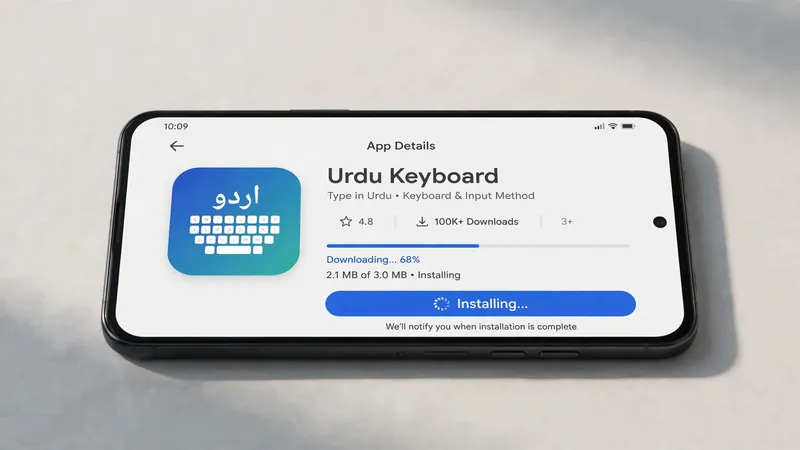
How to Install an Urdu Keyboard on Android
Download from Google Play
Open Google Play and search for your preferred Urdu keyboard app. Check the developer name, user ratings, and recent updates before you install it. Download the app only from trusted sources to reduce security risks. Tap Install and wait for the Android installation to finish. Avoid downloading APK files from unknown websites unless you fully trust the source.
Open the Keyboard App
After installation, open the keyboard app from your app drawer. Most apps display a guided setup screen. Follow the on-screen instructions to begin the configuration process.
Complete Initial Setup
The app will ask you to enable the keyboard and select it as an input method. Some apps also let you choose your preferred Urdu layout or typing style during setup.
Finish Installation
Complete the language setup by selecting Urdu from the available languages. Review any requested permissions before granting access. If the keyboard offers voice typing, it may request microphone permission. Once the initial configuration finishes, your Urdu keyboard is ready for daily use.
Reference: Google recommends installing Android apps through Google Play and reviewing requested permissions before use.
How to Enable the Urdu Keyboard
After installing the app, you must enable it in your phone’s settings. The steps remain similar on most Android devices.
Step 1: Open Android Settings
Open the Android Settings app on your phone.
Step 2: Go to Language & Input
Tap System or General Management, then open Language & Input or Languages & Input. The menu name may vary by device.
Step 3: Enable the Keyboard
Open Keyboard Settings or On-screen Keyboard. Find your Urdu keyboard and turn it on.
Step 4: Choose Urdu Language
Open the keyboard app if needed and select Urdu Language as your preferred typing language.
Step 5: Save Settings
Return to any text field and open the keyboard. Your device is now ready to type in Urdu.
How to Add Urdu as a Language
Most keyboard apps support multiple languages. Open the keyboard settings and tap Add Language. Select Urdu from the language list. Some keyboards may download a small Language Pack before enabling Urdu. Next, choose your preferred Urdu keyboard layout if more than one option appears. You can also set Urdu as the default language or keep a Multilingual Keyboard to switch between Urdu and English whenever needed.
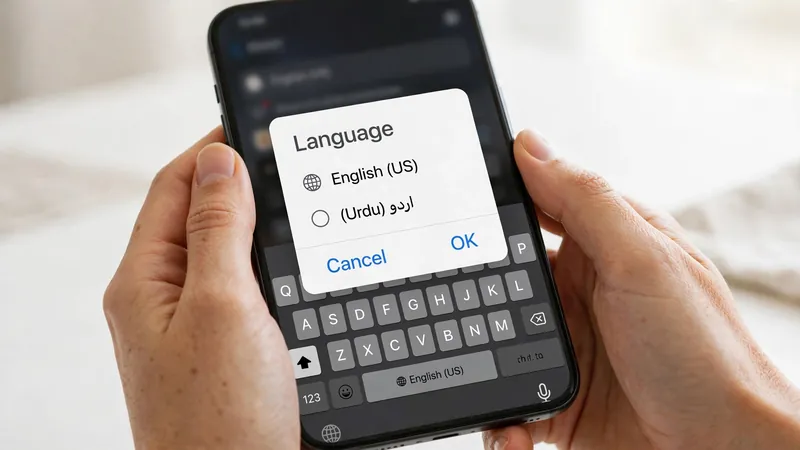
How to Switch Between Urdu and English
Switching languages takes only a few seconds. Most keyboards include a Globe key, a language toggle, or a long press on the spacebar. Tap the control until the keyboard changes from English to Urdu or Urdu to English. Some devices also show a keyboard icon in the navigation bar for quick switching. If you use multiple languages every day, set your preferred order in the keyboard settings to make multilingual typing faster and smoother.
Required Permissions and Why They Matter
An Urdu keyboard may request a few Android permissions during setup. Each permission supports a specific feature. Always review these requests before granting access.
- Keyboard Access: Allows the keyboard to appear and accept your input.
- Vibration: Provides touch feedback while typing.
- Microphone: Enables Voice Typing when you speak instead of typing.
- Storage (Optional): Saves themes, custom dictionaries, or downloaded language files.
- Network (Optional): Supports cloud features, updates, or online suggestions.
Choose apps from trusted developers and install them through Google Play. Read the app’s privacy policy to understand how it handles your information. A trustworthy keyboard explains its User Privacy practices and protects your Data Security. If you do not need a feature, avoid granting unnecessary permissions.
Reference: Google recommends reviewing app permissions and granting only those required for the features you use.
Common Android Issues and Solutions
Keyboard Not Appearing
Open Settings > Language & Input and confirm the keyboard is enabled. Restart the app or your phone if the problem continues.
Urdu Language Missing
Open the keyboard settings and check the available languages. Download the Urdu language pack if the keyboard offers one.
Keyboard Keeps Switching
Set your preferred keyboard as the default input method. Remove unused keyboards if they cause accidental switching.
Voice Typing Not Working
Check that microphone permission is enabled. Confirm your internet connection if the keyboard uses online voice recognition.
Keyboard Lag
Close unused apps and restart your device. Update the keyboard to improve performance and stability.
Prediction Problems
Enable Predictive Text in the keyboard settings. Keep using the keyboard so it can improve word suggestions over time.
Tips for Better Urdu Typing
Use Predictive Text to complete words faster and reduce typing mistakes. Turn on Auto Correction if you want quick spelling fixes. Try Voice Input when writing long messages. Use the Clipboard to save text that you paste often. Personalize your keyboard with Keyboard Themes that improve visibility and comfort. Add emojis when they match your message. Practice typing every day to increase speed and accuracy. Small habits lead to Fast Urdu Typing and a smoother typing experience.
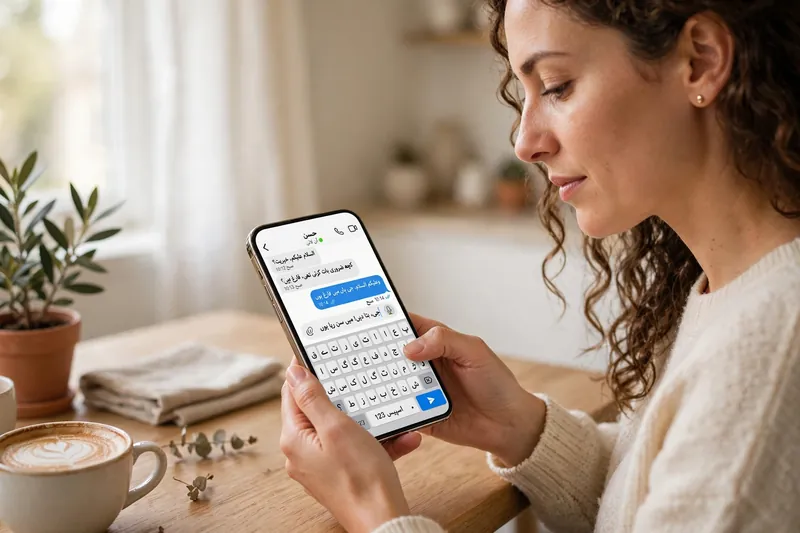
Frequently Asked Questions
Can I type Urdu using English letters?
Yes. Some keyboards support transliteration. They convert Roman Urdu into the Urdu script as you type.
Does it work offline?
Most basic typing features work offline. Some features, such as cloud suggestions or online voice recognition, may require internet access.
Can I switch between English and Urdu?
Yes. Use the globe key, spacebar, or language switch button to change languages instantly.
Is an internet connection required?
No. Basic typing usually works without the internet. Online services depend on the keyboard’s features.
Why can’t I find the Urdu language?
Update the keyboard, open its language settings, and download the Urdu language pack if it is available.
Why is the keyboard not showing?
Make sure you enabled the keyboard in Android settings and selected it as your current input method.
Does voice typing support Urdu?
Many Urdu keyboards support voice typing. Availability depends on your keyboard app, device, and language support.
Conclusion
You can set up an Urdu Keyboard for Android in just a few steps. Install the keyboard, enable it, add the Urdu language, and switch between languages whenever needed. Review permissions carefully and use the troubleshooting tips if problems appear. Once everything is ready, you can enjoy fast, simple, and comfortable Urdu typing across your favorite Android apps.
Related Guides
Try our free Urdu Keyboard tool to type Urdu online instantly.