
Urdu Keyboard Shortcuts
⌘ Searchable Urdu Keyboard Shortcuts
Type any action below to filter the shortcut list instantly.
| Action | Shortcut |
|---|
Urdu Keyboard Shortcuts help you complete everyday tasks with fewer clicks and less effort. These universal commands work across many Windows applications, making document editing faster and more efficient. Whether you write emails, edit reports, browse the web, or work in office software, learning these Urdu typing shortcuts can save valuable time.
Most shortcut keys in Urdu remain the same as English because they depend on the application, not the language you type. This guide focuses on essential computer shortcut keys Urdu users need for daily productivity. It covers copy, paste, undo, redo, text selection, navigation, and other useful commands. It does not explain keyboard layouts, language settings, or typing methods. Microsoft also recommends keyboard shortcuts to improve efficiency across Windows and Office applications.
What Are Urdu Keyboard Shortcuts?
Urdu Keyboard Shortcuts are key combinations that perform common tasks without using menus or a mouse. They help you edit, manage, and navigate Urdu text quickly. These shortcuts stay the same whether you write in Urdu or English because most programs use standard Windows commands. Once you learn them, everyday work becomes easier and more organized.
Why Keyboard Shortcuts Matter for Urdu Users
Keyboard shortcuts reduce repetitive clicks and simplify daily tasks. You can copy text, paste content, undo mistakes, and move through documents in seconds. They also help writers, students, office workers, and professionals stay focused without interrupting their workflow. Small shortcuts often save significant time during long editing sessions.
Where These Shortcuts Work
Most Urdu keyboard shortcuts work in popular applications that support standard Windows commands. You can use them in Microsoft Word, Google Docs, web browsers, text editors like Notepad and Notepad++, and most Windows applications. Because these programs follow common keyboard standards, the same shortcuts work consistently across different tasks and documents.
Essential Urdu Keyboard Shortcuts Everyone Should Know
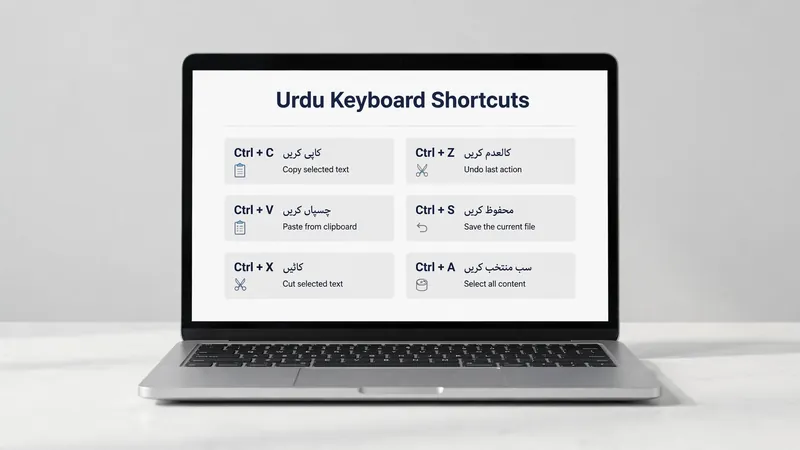
These keyboard shortcuts handle the most common editing tasks and work in many Windows applications that support Urdu text.
Copy Shortcut (Ctrl + C)
Press Ctrl + C to copy selected Urdu text without removing it from the document. You can paste the copied content anywhere you need. This shortcut works in documents, emails, browsers, and many other applications.
Paste Shortcut (Ctrl + V)
Press Ctrl + V to insert copied or cut text at the cursor position. It saves time when moving information between files or applications. Most Windows programs support this universal shortcut.
Cut Shortcut (Ctrl + X)
Use Ctrl + X to remove selected text and place it on the clipboard. You can then paste it into another location. This shortcut helps reorganize paragraphs and sentences quickly.
Undo Shortcut (Ctrl + Z)
Press Ctrl + Z to reverse your last action. It quickly fixes accidental deletions, formatting changes, or typing mistakes. Many applications allow you to use it several times in succession.
Redo Shortcut (Ctrl + Y / Ctrl + Shift + Z)
Use Ctrl + Y or Ctrl + Shift + Z, depending on the application, to restore an action you just undid. This shortcut helps when you change your mind or reverse an undo.
Select All (Ctrl + A)
Press Ctrl + A to highlight every word in the current document or text field. It makes copying, formatting, deleting, or replacing the entire content fast and simple.
Save Document (Ctrl + S)
Press Ctrl + S often to save your work instantly. Regular saving protects your Urdu documents from unexpected crashes, power failures, or accidental program closures.

Navigation Keyboard Shortcuts
Navigation shortcuts help you move through documents and applications quickly. They reduce mouse use and keep your attention on the task.
Move Between Words (Ctrl + Arrow Keys)
Press Ctrl + Left Arrow or Ctrl + Right Arrow to jump one word at a time. This shortcut makes editing long Urdu documents faster and more accurate than moving character by character.
Move to Beginning or End of a Line (Home / End)
Press Home to move the cursor to the start of the current line. Press End to jump directly to the last character on that line.
Move to Beginning or End of a Document (Ctrl + Home / Ctrl + End)
Use Ctrl + Home to reach the top of a document instantly. Press Ctrl + End to jump to the bottom. These shortcuts save time in lengthy files.
Scroll Through Documents (Page Up / Page Down)
Press Page Up to move one screen upward. Press Page Down to move one screen downward. They help you review content without changing the cursor position.
Switch Between Open Applications (Alt + Tab)
Press Alt + Tab to switch between open windows without using the taskbar. Hold Alt and press Tab until you reach the application you want. This shortcut improves multitasking during daily work.
Close Current Window (Alt + F4)
Press Alt + F4 to close the active window or application. Save your work first to avoid losing recent changes. This shortcut works across most Windows programs.
Open File Search (Ctrl + F)
Press Ctrl + F to search for words or phrases inside the current document or webpage. It helps you find information in seconds.
Text Selection Shortcuts
Text selection shortcuts help you highlight content quickly. They make editing, formatting, copying, and deleting Urdu text easier and more accurate.
Select One Character (Shift + Arrow Keys)
Hold Shift and press an Arrow Key to select one character at a time. Continue pressing the arrow keys to extend the selection in the direction you need.
Select One Word (Ctrl + Shift + Arrow Keys)
Press Ctrl + Shift + Left Arrow or Ctrl + Shift + Right Arrow to select one word at a time. This shortcut works well when editing sentences or rearranging paragraphs.
Select to Beginning or End (Shift + Home / Shift + End)
Press Shift + Home to select text from the cursor to the beginning of the current line. Use Shift + End to select text to the end of the line.
Select Entire Document (Ctrl + A)
Press Ctrl + A to highlight all text in the current document or text field. Use this shortcut before copying, formatting, deleting, or replacing the entire content.
Deselect Text
Click anywhere outside the selected text to clear the selection.

Productivity Keyboard Shortcuts
Productivity shortcuts help you finish everyday tasks faster. They simplify document management and reduce interruptions during your work.
Open New Document (Ctrl + N)
Press Ctrl + N to create a new document or window in many applications. It lets you start fresh without searching through menus.
Open Existing Document (Ctrl + O)
Use Ctrl + O to open an existing document quickly. This shortcut saves time when accessing recently saved files.
Print Document (Ctrl + P)
Press Ctrl + P to open the print window instantly. Review your print settings before sending the document to the printer.
Find Text (Ctrl + F)
Use Ctrl + F to search for specific words or phrases. It helps you locate information quickly in long documents and webpages.
Replace Text (Ctrl + H)
Press Ctrl + H to open the Find and Replace tool in supported applications. Replace repeated words or phrases with just a few keystrokes.
Refresh Window (F5 or Ctrl + R)
Press F5 or Ctrl + R, depending on the application, to refresh the current page or window. This shortcut updates displayed content without reopening the program.
Rename File (F2)
Select a file and press F2 to rename it instantly. Type the new name and press Enter to confirm.
Lock Computer (Windows + L)
Press Windows + L to lock your computer immediately. This shortcut protects your files and personal information when you leave your desk.
Common Mistakes When Using Keyboard Shortcuts
Learning keyboard shortcuts is simple, but small mistakes can reduce their benefits. Avoid these common errors to work more efficiently.
Confusing Cut and Copy
Many users mix up Ctrl + X and Ctrl + C. Remember that Cut removes selected text, while Copy leaves the original text unchanged.
Using Shortcuts Unsupported by Certain Applications
Most shortcuts follow Windows standards, but some applications use different commands. Always check the software documentation if a shortcut does not work as expected. This prevents confusion and saves troubleshooting time.
Forgetting to Save Work Frequently
Many users rely on automatic saving and forget to press Ctrl + S. Save your work regularly, especially before closing files or making major edits. Frequent saving helps protect important documents from unexpected interruptions.
Tips for Remembering Urdu Keyboard Shortcuts
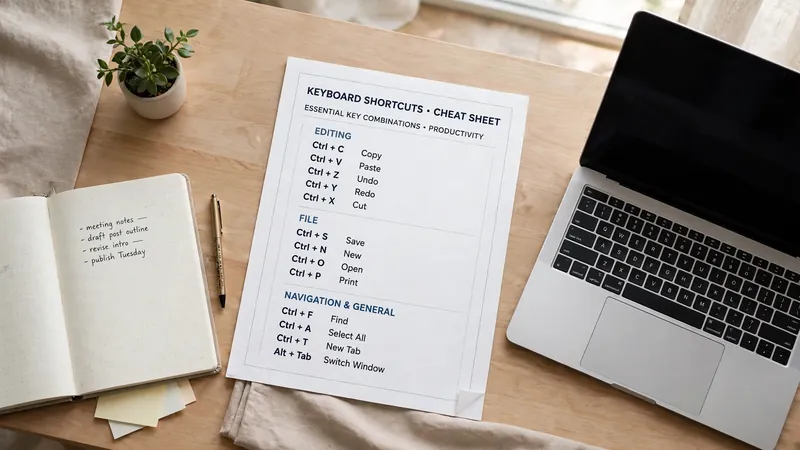
Learning every shortcut at once can feel overwhelming. Start with the ones you use every day. Focus on Copy, Paste, Undo, and Save first. Next, group shortcuts by task, such as editing, navigation, or document management. This method makes them easier to remember. Practice using shortcuts daily instead of reaching for the mouse. Repetition builds confidence and creates lasting habits. You can also keep a printable keyboard shortcut reference near your workspace. A quick glance helps reinforce your memory until the shortcuts become automatic.
Frequently Asked Questions (FAQ)
What are the most useful Urdu keyboard shortcuts?
The most useful Urdu Keyboard Shortcuts include Ctrl + C for Copy, Ctrl + V for Paste, Ctrl + X for Cut, Ctrl + Z for Undo, Ctrl + Y for Redo, Ctrl + A for Select All, and Ctrl + S for Save. These shortcuts work in many Windows applications.
Do these shortcuts work in Microsoft Word?
Yes. Microsoft Word supports the standard Windows keyboard shortcuts discussed in this guide. They help you edit, navigate, select text, and manage documents more efficiently.
Do Urdu keyboard shortcuts work in Google Docs?
Yes. Google Docs supports most common Windows keyboard shortcuts, including Copy, Paste, Undo, Redo, Find, Print, and Select All. Some advanced shortcuts may vary by browser or operating system.
Are keyboard shortcuts the same for Urdu and English?
Yes. Keyboard shortcuts remain the same because they depend on the application, not the language you type. Whether you write in Urdu or English, the shortcut keys usually perform the same action.
Which shortcut is used for Undo and Redo?
Press Ctrl + Z to undo your last action. Use Ctrl + Y or Ctrl + Shift + Z, depending on the application, to redo the action.
Which shortcut selects all text?
Press Ctrl + A to select all text in the current document or text field. It works in most Windows applications, web browsers, and document editors.
Conclusion
Mastering Urdu Keyboard Shortcuts makes everyday computer work faster and more organized. A few simple key combinations can save time when editing documents, browsing the web, or using office applications. Start with the most common shortcuts and use them regularly. With consistent practice, these commands become natural and help you work more efficiently every day.
Related Guides
- Urdu Keyboard Special Characters
- Urdu Keyboard Symbols
- Urdu Keyboard Features: Everything You Need to Know
Try our free Urdu Keyboard tool to type Urdu online instantly.