
Urdu Keyboard Not Working? 10 Proven Fixes That Solve Most Typing Problems
🛠 Urdu Keyboard Troubleshooter — Click Your Problem
Select the issue you are facing to see the proven fix steps.
- Open Settings > System > Languages & input on your phone.
- Tap On-screen keyboard and make sure your Urdu keyboard app is enabled.
- If it is enabled but missing, remove it and add it again, then restart the app.
Is your Urdu keyboard not working when you need it most? This problem can affect Android phones, iPhones, Windows PCs, and laptops. You may see a missing keyboard, language errors, or typing issues. The good news is that most problems have simple solutions. This guide explains 10 proven fixes to help you restore your Urdu keyboard and start typing again quickly.
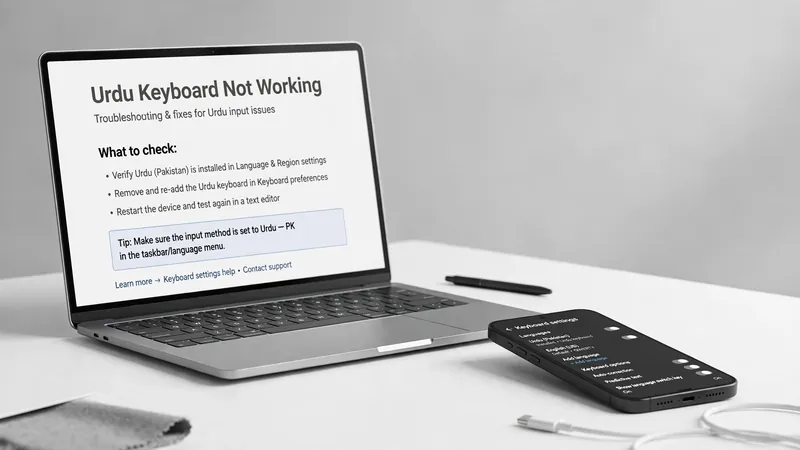
Why Is Your Urdu Keyboard Not Working?
Before trying any fix, it helps to know what caused the problem. The right solution depends on the reason behind the issue. In many cases, the problem is temporary and easy to fix.
Common Reasons
A temporary software glitch can stop your Urdu keyboard from working. Restarting your device often clears small errors and restores normal typing.
A recent software update may also create compatibility issues. Sometimes, the keyboard app needs a newer update to work correctly with the latest operating system.
Your keyboard app may crash because of temporary bugs or damaged files. When this happens, the keyboard may freeze, disappear, or stop responding.
A corrupted keyboard cache can interrupt normal performance. Old cache files may prevent the keyboard from loading or typing correctly.
Missing language pack files can also cause problems. Without the required language resources, the Urdu keyboard may disappear or fail to display Urdu characters.
Incorrect app permissions may block the keyboard from working in some apps. Limited access can prevent the keyboard from opening or accepting input.
Some older or unsupported applications may not work properly with every input method. In rare cases, a device-specific bug can also affect Urdu typing after an update.
Quick Checks Before Trying Advanced Fixes
Many Urdu keyboard problems disappear after a few simple checks. Try these quick steps before moving to advanced solutions. They take only a few minutes and often fix the issue.
Perform These Quick Checks
Start by restarting your device. A fresh restart clears temporary system errors and reloads important background services. This simple step fixes many keyboard problems.
Next, close the app where the problem appears. Open it again and check if the Urdu keyboard works normally. Sometimes, the app freezes while the keyboard works correctly.
Then, test the Urdu keyboard in another application. Try a messaging app, a notes app, or your web browser. If the keyboard works there, the original app likely causes the problem.
If your keyboard uses online language resources, check your internet connection. A weak or unstable connection may prevent language files from syncing correctly.
Finally, wait a few moments and try again. Temporary system errors sometimes resolve themselves after background processes finish. If the Urdu keyboard still does not work, move to the next fixes below.
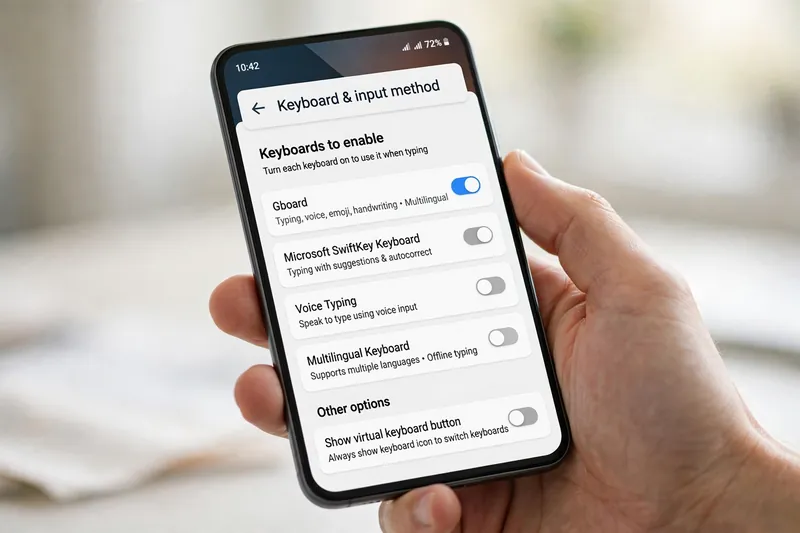
Fix Urdu Keyboard Missing From Your Device
A missing Urdu keyboard does not always mean it has been removed. In many cases, a temporary issue hides it from your device. Understanding the cause helps you choose the right fix.
Why the Keyboard Disappears
A recent system or keyboard app update can create conflicts that hide the Urdu keyboard. The keyboard may also stop appearing if it becomes disabled after an update or a system change. Corrupted language resources can cause the device to lose access to Urdu characters. In some cases, the keyboard loads in the background but fails to appear because of a temporary software error.
How to Restore It
Start by restarting your device to refresh system services. Then, check whether the keyboard app has the latest update because developers often release fixes for known bugs. If the problem started after an update, give the device a few minutes to complete background tasks. You can also refresh the keyboard’s language resources by reopening the keyboard and testing it in another app. If the Urdu keyboard still does not appear, continue with the next fixes to identify the exact cause.
Fix Urdu Keyboard Language Problems
Language issues can stop the Urdu keyboard from working correctly even when the keyboard appears on your screen. These problems usually affect how the keyboard displays or enters Urdu text. The good news is that you can often fix them in a few minutes.
Common Language Issues
Your keyboard may switch to English without warning while you type. In other cases, Urdu characters may not appear at all. Some users also see mixed-language typing, where English and Urdu appear together even after selecting Urdu. These problems often result from temporary language errors or outdated language resources instead of a hardware fault.
Effective Fixes
Refresh the language resources by closing the keyboard and opening it again. This simple step reloads the files needed for Urdu typing. Next, restart the keyboard service by restarting your device. A fresh start removes temporary glitches that affect language processing. Update your keyboard app to install bug fixes and compatibility improvements. Finally, clear temporary language data if the problem continues. Removing outdated temporary files helps the keyboard load the correct Urdu language resources again.
Fix Urdu Keyboard Input Problems
Input problems can be frustrating because the Urdu keyboard appears to work but fails when you start typing. These issues usually come from temporary software errors, app conflicts, or outdated keyboard data. The right fix depends on the symptom you notice.
Keyboard Opens but Won’t Type
If the Urdu keyboard opens but does not type, the input may have frozen. Wait a few seconds and try again. If nothing happens, close the app and reopen it. This often removes temporary app conflicts. A delayed response can also happen when your device runs low on memory or background processes are busy. Restarting the device refreshes system resources and helps the keyboard respond normally.
Keyboard Types Incorrectly
Sometimes the keyboard enters the wrong characters or shows a blank input field. You may also notice text appearing several seconds after you type. In some cases, the keyboard switches to random English output even though Urdu is selected. These problems usually point to temporary keyboard data or compatibility issues. Update the keyboard app to install the latest bug fixes. Then restart your device and test the keyboard in another app. If the problem appears everywhere, clear the keyboard’s temporary data to remove damaged files that may interfere with accurate Urdu typing.
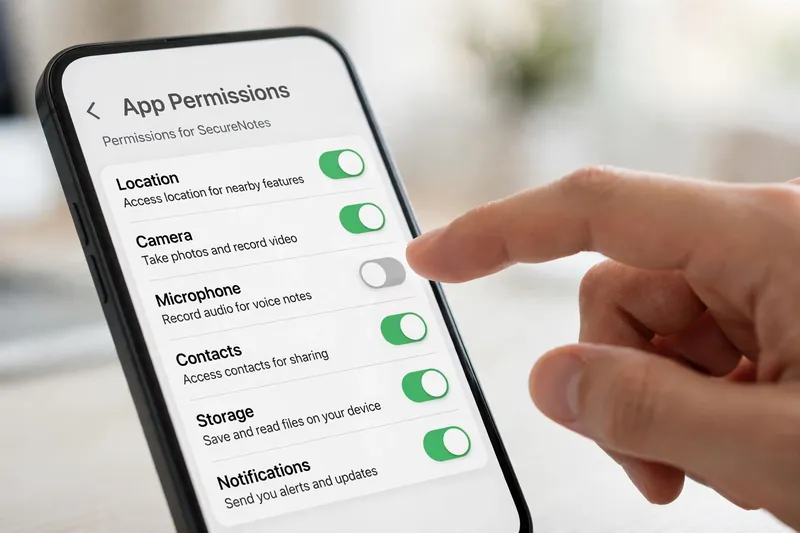
Fix Permission Issues That Stop Urdu Keyboard From Working
Permission problems can prevent your Urdu keyboard from working as expected. They may block the keyboard from opening, typing, or appearing in certain apps. Fixing these issues often restores normal typing without advanced troubleshooting.
How Permissions Affect Typing
Your keyboard app needs the right permissions to work properly. Restricted keyboard access can stop it from accepting input or displaying correctly. Some apps may also conflict with the keyboard, causing it to freeze or disappear. These issues usually affect only specific apps rather than your entire device.
Safe Permission Fixes
Review your keyboard app if the problem started after a recent update or security change. Make sure it has the permissions needed to function normally. If only one app causes the issue, close it and try the Urdu keyboard in another app. Then restart your device to refresh background services. If the problem continues, update both the keyboard app and the affected app. This often resolves compatibility issues without changing your keyboard setup.
What If the Problem Started After an Update?
Software updates improve security and performance, but they can sometimes affect your Urdu keyboard. The issue often appears soon after installing a new operating system or keyboard app update. In most cases, the problem is temporary and has a simple solution.
Why Updates Cause Keyboard Issues
A new update may introduce compatibility bugs between your device and the keyboard app. Temporary files created during the update can also become corrupted. Outdated cached data may conflict with the latest software, causing the Urdu keyboard to freeze, disappear, or stop typing correctly. These issues usually affect software rather than your device’s hardware.
Practical Solutions
Start by restarting your device to complete any pending background processes. Next, check for a newer version of the keyboard app because developers often release quick fixes after major updates. If no update is available, wait a short time for an official patch if the issue is widespread. Reinstall the keyboard app only if the problem continues after trying the previous fixes, as this can replace damaged files and restore normal performance.
When None of the Fixes Work
If your Urdu keyboard still does not work, the problem may need further investigation. At this point, avoid making major changes until you have tried safer options.
Use another trusted keyboard temporarily so you can continue typing while you troubleshoot the issue. This also helps you confirm whether the problem affects only one keyboard app.
Next, contact your device manufacturer’s support team or the keyboard app’s support service. They can identify known issues and recommend the best solution. If you believe you found a software bug, report it through the keyboard app or your device’s official feedback channel. Your report may help developers fix the issue faster.
Consider a factory reset only as a last resort. Before doing so, back up your important data to avoid losing personal files, photos, documents, and other valuable information.

Frequently Asked Questions
Why is my Urdu keyboard suddenly not working?
A temporary software glitch, a recent update, corrupted keyboard cache, or an app conflict can stop your Urdu keyboard from working. Restart your device first. Then test the keyboard in another app. If the problem continues, update the keyboard app and try the fixes explained above.
Why does my Urdu keyboard keep switching to English?
This usually happens because of a temporary language error, outdated language resources, or a keyboard app issue. Restart your device and update the keyboard app. If the problem remains, refresh the language resources and check whether the issue appears in every app.
Why is the Urdu keyboard missing?
The Urdu keyboard may disappear after a software update, a temporary system error, or damaged language resources. In most cases, the keyboard is not permanently removed. Restart your device, update the keyboard app, and check if the keyboard appears in different applications.
Can a software update break the Urdu keyboard?
Yes. A software update can introduce compatibility bugs or leave temporary files that affect keyboard performance. Most developers release bug fixes quickly, so keep both your operating system and keyboard app updated.
Does clearing keyboard cache delete my personal data?
No. Clearing the keyboard cache removes temporary files that help the app run faster. It does not delete your personal documents, photos, or messages. However, some keyboards may reset learned words or typing suggestions after the cache is cleared.
Conclusion
Most Urdu keyboard problems are temporary and easy to fix. Start with the simplest solutions, such as restarting your device or testing the keyboard in another app. Then work through each fix one by one until the problem is resolved. If the issue continues after trying every method, contact your device manufacturer or keyboard app support for expert help. This approach saves time and helps you restore your Urdu keyboard with confidence.
Related Guides
- Urdu Keyboard Shortcuts
- How to Type in Urdu
- Urdu Typing Practice: A Complete Daily Guide to Building Accuracy and Confidence
Try our free Urdu Keyboard tool to type Urdu online instantly.