Urdu Keyboard for PC: Complete Guide for Windows, Mac & Easy Urdu Typing
💻 Urdu Keyboard for PC — Interactive Setup Checklist
Choose your system, then tick each step as you finish it:
0% complete
An Urdu Keyboard for PC helps you type Urdu on Windows and Mac with ease. It supports schoolwork, office tasks, emails, and everyday communication. Modern computers offer built-in Urdu keyboard options, while external USB and wireless keyboards work just as well. You can choose a standard or phonetic layout based on your preference. This guide explains the basics, compatibility, and essential features to help you start typing Urdu with confidence.
What Is an Urdu Keyboard for PC?
Understanding an Urdu Keyboard
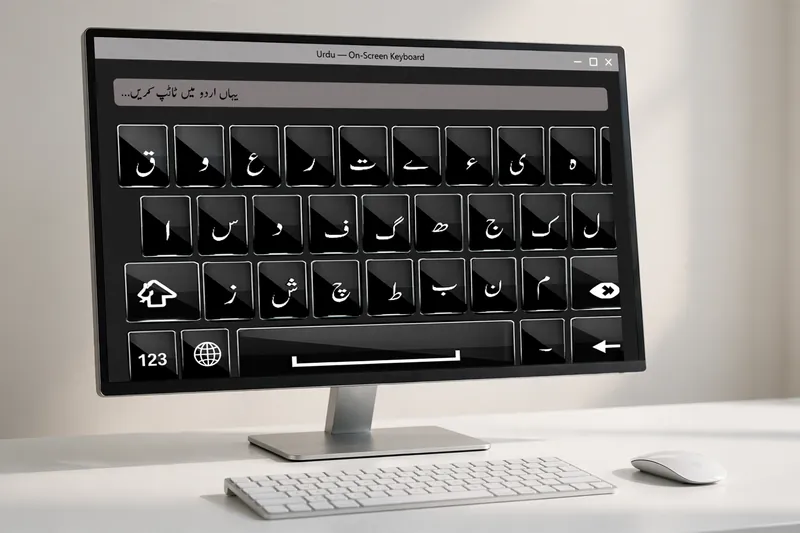
An Urdu Keyboard for PC lets you type in the Urdu language on a computer. It uses the Urdu script and supports Unicode for accurate text display. Unicode keeps your text readable across websites, apps, and documents. You can choose a standard or phonetic keyboard layout based on your typing style. This makes Urdu typing simple, fast, and compatible with modern software.
Who Should Use It?
An Urdu Keyboard for PC suits anyone who writes in Urdu. Students can complete assignments and research. Teachers can prepare lessons and notes. Bloggers and writers can create online content with ease. Office workers can write reports and emails. Translators can produce accurate Urdu text. It also helps freelancers, journalists, and anyone who communicates in Urdu every day.
Why Use an Urdu Keyboard on a Computer?
Typing Urdu on a computer improves speed and accuracy. It helps you create professional documents, emails, and presentations. You can write social media posts, articles, and school projects with confidence. Unicode support keeps your text consistent across devices and applications. A well-designed keyboard layout also reduces typing errors and improves your overall productivity.
Types of Urdu Keyboards Available for PC
Different Urdu keyboards meet different typing needs. Some come built into your operating system, while others offer advanced typing features. Choosing the right option depends on your experience, writing style, and daily tasks.
Built-in Urdu Keyboard
Most modern computers include built-in support for the Urdu language. Windows and macOS let you add an Urdu keyboard through their language settings. This option works well for everyday typing and does not require extra hardware. It also supports standard Urdu layouts, making it a practical choice for students, professionals, and casual users.
Urdu Unicode Keyboard
An Urdu Unicode Keyboard uses the Unicode standard to display Urdu text correctly. It keeps your writing consistent across websites, documents, emails, and messaging apps. Unicode also supports popular Urdu fonts and ensures your text remains readable when shared with others. It is the preferred choice for modern Urdu typing.
Urdu Phonetic Keyboard
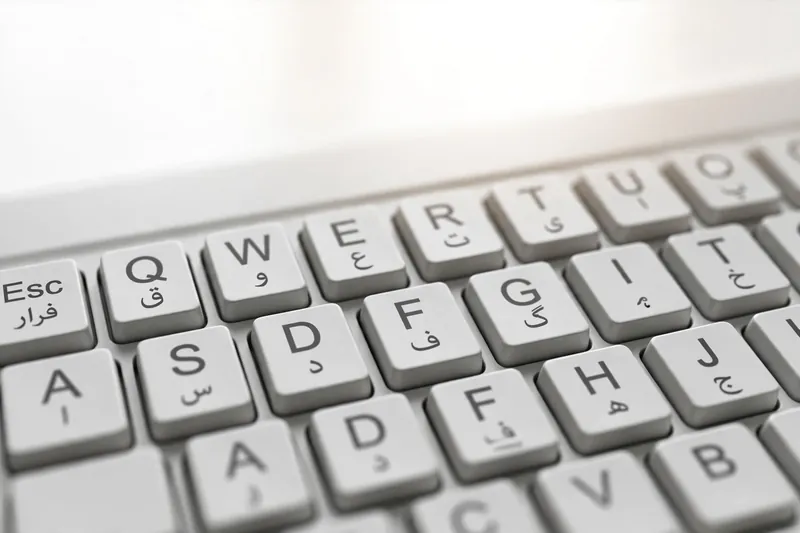
An Urdu Phonetic Keyboard maps Urdu letters to similar English keys. This layout feels familiar to users who already type in English. Beginners can learn it quickly without memorizing a new keyboard layout. It offers a simple way to write Urdu with better speed and accuracy.
Virtual Urdu Keyboard
A virtual Urdu keyboard works inside a web browser. It helps when you use a shared or public computer. You can type Urdu without installing software. It suits occasional typing and quick online tasks.
Urdu Keyboard Compatibility Across Different PCs
Modern Urdu keyboards work with most personal computers. They support different operating systems and hardware, giving users a smooth typing experience across devices.
Windows PCs
Windows offers built-in support for the Urdu language. Most Urdu keyboard layouts work smoothly on Windows 10 and Windows 11. You can type in Urdu across common applications with ease.
Mac Computers
Mac computers also support Urdu typing through their language settings. Users can write Urdu in documents, emails, web browsers, and many other applications without special hardware.
Desktop and Laptop Support
Urdu keyboards work on both desktop computers and laptops. Your typing experience stays the same, regardless of your device. You only need the correct language and keyboard layout.
External USB and Wireless Keyboards
External USB and Bluetooth keyboards fully support Urdu typing. The keyboard hardware does not limit the language you can use. Once you enable the Urdu layout, any compatible keyboard can type Urdu with the same accuracy and functionality.
Basic Setup for an Urdu Keyboard on PC
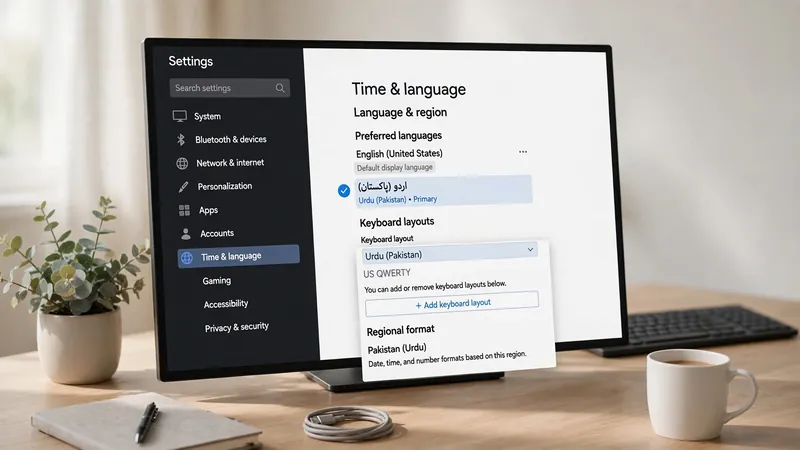
Setting up an Urdu keyboard takes only a few minutes. Modern operating systems include language support, so you can start typing without extra hardware. After enabling the language, choose a layout that matches your typing style and confirm everything works correctly.
Adding the Urdu Language
Most Windows and Mac computers let you add Urdu from their language settings. Once enabled, your PC recognizes Urdu as an input language. This feature works with many built-in applications and popular third-party programs. A proper language setup creates a smooth and reliable typing experience.
Choosing a Keyboard Layout
Choose a keyboard layout that fits your needs. A standard layout follows the traditional Urdu key arrangement. A phonetic layout places Urdu letters on similar English keys. Many beginners prefer the phonetic option because it feels familiar and easier to learn.
Testing the Keyboard
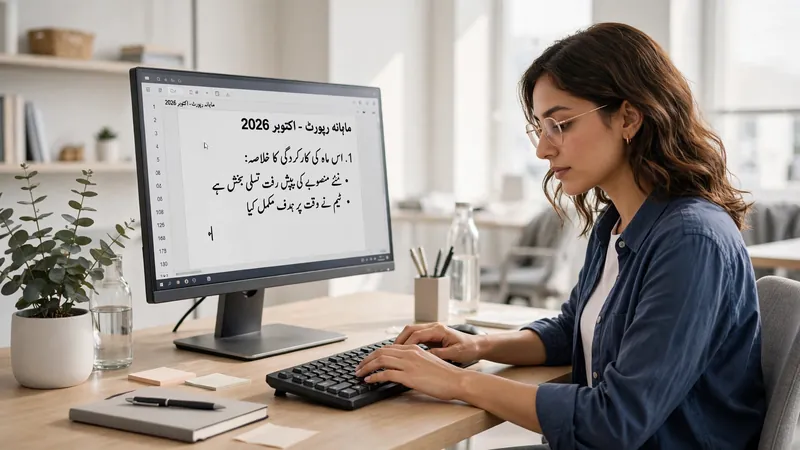
After setup, test the keyboard before daily use. Open Microsoft Word, a web browser, or a notes application. Type a few Urdu words to check the layout and text display. If everything appears correctly, your keyboard is ready for writing documents, emails, and online content.
Switching Between English and Urdu
Many users type in both English and Urdu during the same task. Fast language switching improves workflow and reduces interruptions. Modern computers make this process simple and convenient.
Language Switching Basics
After adding both languages, you can change the active keyboard whenever needed. This lets you write English and Urdu in the same document or browser. Smooth switching helps you communicate naturally without changing devices or keyboards.
Keyboard Shortcuts
Most operating systems include built-in keyboard shortcuts for changing input languages. These shortcuts save time and increase productivity during writing tasks. You can switch languages instantly while working on documents, emails, presentations, or social media posts. Quick access keeps your typing fast and efficient.
Common Features of Modern Urdu Keyboards
Modern Urdu keyboards offer useful features for personal, educational, and professional work. They improve typing accuracy, support multiple languages, and work across many applications and devices.
Unicode Support
Unicode support keeps Urdu text accurate across websites, documents, emails, and messaging apps. It also improves compatibility with modern software and operating systems.
Multi-language Typing
You can type in Urdu and English without changing hardware. This feature helps users create bilingual documents and communicate with different audiences more efficiently.
Font Compatibility
Modern Urdu keyboards work with popular Nastaliq and other Unicode fonts. This ensures clear text in documents, presentations, websites, and printable files.
Offline and Online Typing
You can type Urdu both offline and online. Built-in keyboards work without an internet connection, while browser-based tools support quick typing from almost any computer. This flexibility makes Urdu typing convenient wherever you work.
Common Problems and Simple Solutions
Most Urdu keyboard issues have simple fixes. A quick check of your language settings, keyboard layout, or font can solve many problems. These basic tips help you return to typing without spending much time on troubleshooting.
Keyboard Not Appearing
If the Urdu keyboard does not appear, check whether you added the Urdu language correctly. Restart the application if needed. Then confirm that Urdu is available in your list of input languages.
Wrong Characters While Typing
Wrong characters usually mean the selected keyboard layout does not match your typing style. Switch between the standard and phonetic layouts. Then test the keyboard again to confirm the correct output.
Language Switching Issues
If you cannot switch languages, make sure both English and Urdu are active. Check your keyboard shortcut settings. Closing and reopening the application may also restore normal language switching.
Font Display Problems
If Urdu text looks broken or unreadable, use a Unicode-compatible font. Popular Nastaliq and other Unicode fonts display Urdu correctly in most modern applications. Keeping your software updated also improves font compatibility.
Tips for Better Urdu Typing on a PC
Better typing comes with the right tools and regular practice. Small improvements can increase your speed, accuracy, and confidence over time.
- Practice Urdu typing every day to build muscle memory.
- Learn built-in keyboard shortcuts to save time.
- Choose the keyboard layout that feels most comfortable.
- Keep your language settings and operating system updated.
- Use Unicode-compatible fonts for better readability and compatibility.
- Test your keyboard in different applications before starting important work.
Frequently Asked Questions
Can I use an Urdu Keyboard on any PC?
Yes. Most modern Windows and Mac computers support Urdu typing through built-in language options or compatible keyboard software.
Does Windows include an Urdu Keyboard?
Yes. Windows includes built-in support for the Urdu language. You can enable it through the language settings without buying extra hardware.
Can I type Urdu on a Mac?
Yes. macOS supports Urdu input through its language settings. You can type Urdu in documents, browsers, emails, and many other applications.
Do I need special hardware?
No. A standard keyboard works for Urdu typing. USB and Bluetooth keyboards also support Urdu after you enable the correct keyboard layout.
What is the difference between Unicode and Phonetic keyboards?
A Unicode keyboard focuses on universal text compatibility across applications. A phonetic keyboard maps Urdu letters to similar English keys for easier learning.
Can I switch between English and Urdu instantly?
Yes. Most computers include built-in language switching features. They let you move between English and Urdu while working without changing your keyboard.
Which Urdu Keyboard is best for beginners?
Many beginners prefer a phonetic keyboard because it uses familiar English key positions. Users who know the traditional Urdu layout may choose the standard keyboard instead.
Conclusion
An Urdu Keyboard for PC makes Urdu typing simple on modern computers. Windows and Mac both support Urdu input through built-in language features. External USB and Bluetooth keyboards work without special hardware. Choosing the right keyboard layout improves speed and accuracy. Unicode support keeps your text consistent across documents, websites, emails, and other applications, making everyday Urdu typing easier and more reliable.
Related Guides
Try our free Urdu Keyboard tool to type Urdu online instantly.