
Urdu Keyboard for iPhone: Complete Setup Guide
📱 iPhone Urdu Keyboard Setup Checklist
Follow along on your iPhone and tick each step as you finish it:
0 of 6 steps complete
🎉 All done! Your Urdu keyboard for iPhone is ready.
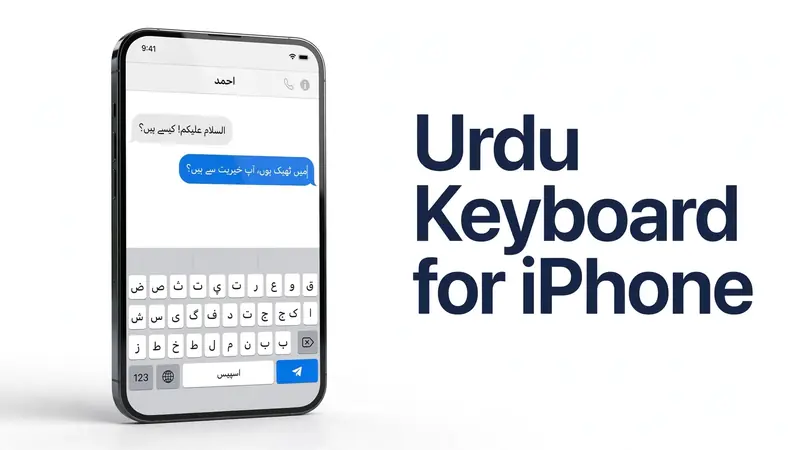
Use the Urdu Keyboard for iPhone to type in the Urdu language with ease. This guide shows how to enable, change, and use the keyboard on iOS. You will also learn how to fix common issues and choose the right settings for smooth Urdu typing.
What Is the Urdu Keyboard for iPhone?
The Urdu Keyboard for iPhone lets you type messages, emails, and notes in the Urdu language. Apple includes this keyboard in iOS, so you do not need extra apps for basic typing. It supports Unicode, which helps your text display correctly across apps and websites. You can switch between Urdu and other languages with a single tap, making daily communication simple and fast.
Apple’s Built-in Urdu Keyboard
Apple provides a built-in Urdu keyboard on the iPhone through iOS. You can add it from Keyboard Settings in minutes. The keyboard supports Unicode text for broad compatibility. It also uses the Nastaliq script where supported by apps and fonts, helping users create clear and readable Urdu text without installing third-party keyboards.
Who Should Use It?
This keyboard suits anyone who writes in Urdu on an iPhone. Students, professionals, families, and bilingual users can switch between English and Urdu with ease. It works well for messaging, emails, social media, and everyday communication using Apple’s multilingual keyboard system.
Main Features
The built-in Urdu keyboard offers quick language switching, reliable Unicode typing, and smooth integration with iOS. It works across most apps on your iPhone without extra setup. Apple updates keyboard performance through iOS releases, improving stability, security, and the overall multilingual typing experience.
Authority Note: The features and setup described above align with Apple’s official keyboard and language settings documentation available through Apple Support and the Apple User Guide.
iOS Compatibility
The Urdu Keyboard for iPhone works on most modern iPhones that support recent versions of iOS. Apple includes the Urdu keyboard as part of its language options, so you can enable it directly from Keyboard Settings without downloading additional software. Keeping your iPhone updated also improves keyboard performance, security, and compatibility.
Supported iOS Versions
Apple offers the built-in Urdu keyboard on supported versions of iOS. Most users running recent iOS releases can add it through Settings > General > Keyboard > Keyboards. If you use an older iOS version, update your device to access the latest keyboard features, security improvements, and language support.
Compatible iPhone Models
The Urdu keyboard works on iPhone models that support the installed version of iOS. This includes many recent iPhone generations still supported by Apple. Open Keyboard Settings to check if Urdu appears in the available language list. If it does not, install the latest iOS update and check again.
Authority Note: Apple maintains the list of supported iPhone models and iOS versions through Apple Support and the Apple User Guide. Checking these official resources ensures you have the most accurate compatibility information.
How to Add Urdu Keyboard on iPhone
Adding the Urdu Keyboard for iPhone takes only a few minutes. Apple includes the keyboard in iOS, so you can enable it from your device settings. Follow these simple steps to start typing in Urdu.
Step 1 – Open Settings
Unlock your iPhone and open the Settings app. Scroll through the menu until you find General.
Step 2 – Navigate to Keyboard Settings
Tap General, then select Keyboard. Next, tap Keyboards to view all installed languages and keyboard options.
Step 3 – Add New Keyboard
Tap Add New Keyboard. Apple will display a list of available languages in alphabetical order. Scroll down or use the search bar to find Urdu. Tap it once to add it to your list of keyboards.
Step 4 – Select Urdu
After adding Urdu, return to the keyboard list to confirm it appears. Your iPhone now supports Urdu typing across compatible apps, including Messages, Notes, Mail, and many third-party applications.
Step 5 – Start Typing
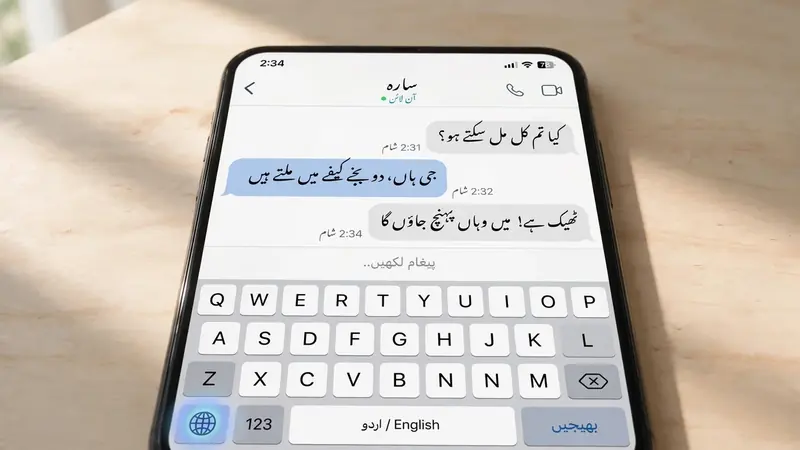
Open any app that uses the keyboard. Tap a text field to bring up the keyboard, then press the Globe icon to switch to Urdu. Your iPhone will remember the added language until you remove it from Keyboard Settings.
Quick Answer: Go to Settings > General > Keyboard > Keyboards > Add New Keyboard > Urdu. Open any app, tap the Globe icon, and start typing in Urdu.
Authority Note: These steps follow Apple’s official keyboard setup process described in the Apple User Guide and Apple Support documentation.
How to Change Between Urdu and English Keyboard
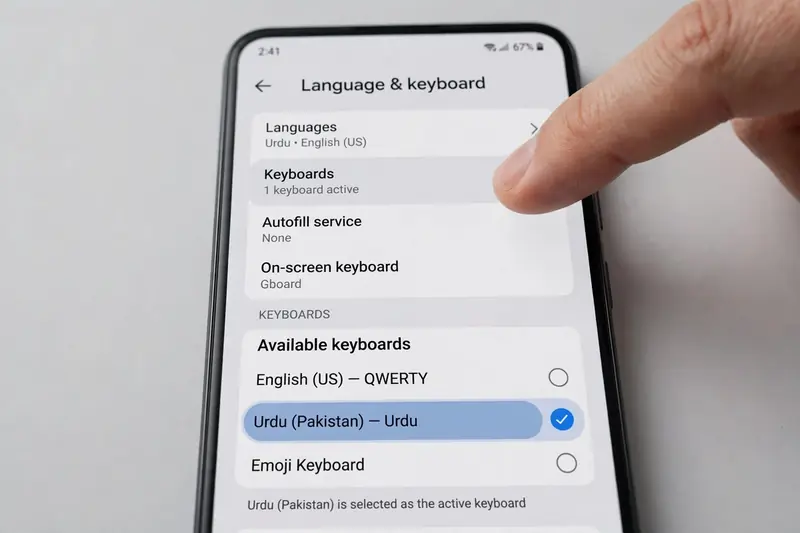
Once you add Urdu, switching languages becomes fast and simple. Apple’s multilingual keyboard system lets you move between keyboards without changing your language settings every time.
Using the Globe Icon
Open any app with a text field. Tap the keyboard to make it appear. Press the Globe icon to change keyboard languages. If you use several keyboards, keep tapping or press and hold the Globe icon to choose Urdu or English from the list.
Reordering Keyboards
Go to Settings > General > Keyboard > Keyboards. Tap Edit, then drag the keyboards into your preferred order. Your iPhone will display them in that sequence when you switch languages.
Removing a Keyboard
Open Keyboard Settings, tap Edit, and select the minus (–) button beside the keyboard you want to remove. Confirm your choice to delete it from your multilingual keyboard list.
Keyboard Permissions and Privacy
The built-in Urdu Keyboard for iPhone comes from Apple, so it works without requesting extra permissions. If you install a third-party keyboard, review its settings before granting additional access.
Full Access Explained
Some third-party keyboards use a Keyboard Extension to provide extra features like themes, cloud syncing, or advanced predictions. These apps may ask for Full Access. Read the permission details carefully before enabling this option.
Privacy Considerations
Protect your personal information by downloading keyboards only from trusted developers on the App Store. Review each app’s Privacy policy and requested Permissions before installation. Apple recommends granting only the access needed for the keyboard to function, which helps keep your data secure and builds user trust.
Authority Note: Apple’s guidance on keyboard permissions and Full Access is available through Apple Support and the Apple Platform Security documentation, making them reliable references for privacy and security best practices.
Built-in Apple Keyboard vs Third-Party Urdu Keyboard Apps
Choosing the right Urdu Keyboard for iPhone depends on your typing needs. Apple offers a reliable built-in option, while third-party apps add extra features. Understanding the differences helps you pick the best keyboard for daily use.
Apple’s Built-in Keyboard
The Apple Keyboard comes preinstalled on every iPhone running iOS. It offers secure Urdu typing without extra downloads. You can enable it from Keyboard Settings in minutes. Because Apple develops and maintains the keyboard, it integrates smoothly with iOS and receives updates through regular system releases.
Google Gboard
Google Gboard is available on the App Store and offers multilingual typing, voice input, emoji search, and other helpful tools. It supports Urdu alongside many other languages. Review its privacy information before enabling optional features or granting additional permissions.
Microsoft SwiftKey
Microsoft SwiftKey also supports Urdu typing on the iPhone. It includes customizable themes, predictive suggestions, and multilingual typing. You can download it from the App Store and switch to it whenever you need extra personalization.
Which One Should You Choose?
Choose the Apple Keyboard if you want simple setup, strong privacy, and seamless iOS integration. Consider Google Gboard or Microsoft SwiftKey if you prefer additional customization or typing features. Compare each app’s features, privacy details, and permissions before making your decision.
Authority Note: Keyboard features, privacy practices, and supported languages may change over time. Always check the official App Store listings and Apple Support for the latest information.
Common Urdu Keyboard Problems and Fixes
Most Urdu keyboard issues have simple solutions. Before trying advanced fixes, check your Keyboard Settings and confirm your iPhone runs the latest version of iOS.
Urdu Keyboard Not Showing
Open Settings > General > Keyboard > Keyboards and confirm that Urdu appears in the list. If it is missing, tap Add New Keyboard and add it again. Restart your iPhone if the keyboard still does not appear.
Keyboard Won’t Switch
If the Globe icon does not change keyboards, verify that both Urdu and English remain enabled. Press and hold the Globe icon to select the correct language. Restart your iPhone if switching still fails.
Urdu Predictions Not Working
Prediction features can vary by language and iOS version. Make sure Predictive Text is enabled in Keyboard Settings. Install the latest iOS update to receive improvements and bug fixes released by Apple.
Keyboard Keeps Disappearing
Some apps may briefly refresh the keyboard during updates or when switching input fields. Close and reopen the app first. If the issue continues across multiple apps, restart your iPhone and check for pending iOS updates.
Authority Note: Apple recommends checking Keyboard Settings, restarting the device, and keeping iOS up to date as the first troubleshooting steps. If problems continue, consult Apple Support for device-specific guidance.
Tips for Better Urdu Typing on iPhone
A few simple habits can improve your Urdu typing experience and help you work faster.
- Keep iOS updated to receive the latest keyboard improvements and security updates from Apple.
- Use Unicode typing to ensure your Urdu text displays correctly across apps and websites.
- Turn on Predictive Text in Keyboard Settings if your selected keyboard supports it.
- Practice switching between Urdu and English using the Globe icon for faster multilingual typing.
- Combine Urdu text with emojis to make chats more engaging and expressive.
- Review your keyboard settings occasionally to keep everything working smoothly.
Authority Note: Apple recommends installing the latest iOS updates to improve system performance, security, and keyboard reliability.
Frequently Asked Questions
Does iPhone have a built-in Urdu keyboard?
Yes. Apple includes a built-in Urdu keyboard in iOS. You can enable it from Settings > General > Keyboard > Keyboards > Add New Keyboard.
How do I install the Urdu keyboard?
Open Settings, go to General, tap Keyboard, select Keyboards, then choose Add New Keyboard. Find Urdu and tap it to add the keyboard.
Can I type Urdu and English together?
Yes. The iPhone supports multilingual typing. Tap the Globe icon to switch between Urdu and English whenever you need.
Is the Urdu keyboard free?
Yes. Apple’s built-in Urdu keyboard comes free with iOS. You do not need to pay or download another app for basic Urdu typing.
Which Urdu keyboard is best?
The Apple Keyboard works well for most users because it offers strong security and smooth iOS integration. If you want more customization, you can also try Google Gboard or Microsoft SwiftKey from the App Store.
Does the Urdu keyboard work offline?
Yes. The built-in Apple keyboard works offline for normal typing. However, some optional features in third-party keyboards may require an internet connection.
Why isn’t the Urdu keyboard appearing?
Check Keyboard Settings and make sure Urdu is added. Update your iPhone to the latest version of iOS if the language does not appear. If the issue continues, visit Apple Support for additional troubleshooting.
Final Thoughts
The Urdu Keyboard for iPhone makes typing in Urdu simple, secure, and convenient. Apple includes native Urdu support in iOS, so setup takes only a few minutes. Keep your iPhone updated, use Unicode typing, and review your keyboard settings regularly for the best experience. By following the steps and tips in this guide, you can enjoy smooth, reliable Urdu typing across your favorite iPhone apps.
Related Guides
Try our free Urdu Keyboard tool to type Urdu online instantly.