Urdu Keyboard for Windows: Download, Install & Type Urdu on Windows 11 & 10
💻 Urdu Keyboard for Windows — Setup Checklist
Complete each step on your PC and tick the box:
0% complete
Typing in Urdu on Windows is simple with the built-in Urdu Keyboard for Windows. Microsoft includes native Urdu language support in Windows 11, Windows 10, Windows 8, and Windows 7. You can add the Urdu keyboard from your language settings without installing extra software. The keyboard supports Unicode, so your text displays correctly in Microsoft Word, web browsers, email apps, and many other programs. This guide explains how to download, install, and configure the Urdu keyboard. You will also learn how to switch between English and Urdu, choose the right keyboard layout, and solve common typing problems. Every step follows Microsoft’s language support and Unicode standards to provide accurate, reliable, and trustworthy guidance.
What Is an Urdu Keyboard for Windows?
Understanding the Urdu Keyboard
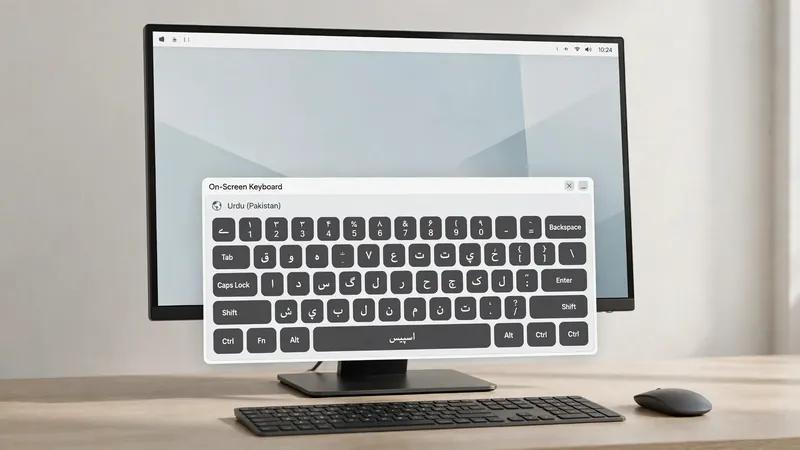
An Urdu Keyboard for Windows lets you type in the Urdu language using your computer keyboard. Microsoft Windows includes a built-in Urdu keyboard layout that supports everyday typing. You can use it for documents, emails, websites, and social media. It works across many Windows apps without extra setup.
Built-in vs Third-Party Urdu Keyboards
The built-in Windows Urdu keyboard offers a secure and reliable typing experience. It receives support through Microsoft’s language features and integrates with Windows settings. Third-party keyboards may add phonetic layouts or extra tools. However, they often require separate installation and updates. Most users can meet their daily Urdu typing needs with the built-in option.
Unicode and Why It Matters
Unicode stores Urdu characters in a universal format. It helps your text display correctly across devices, websites, and software. Unicode also improves compatibility with Microsoft Word, browsers, and online forms. Using a Unicode-based Urdu keyboard keeps your content readable, searchable, and easy to share.
Windows Compatibility
Windows 11
Windows 11 includes native support for the Urdu Keyboard for Windows. You can add Urdu from Settings without extra software. Most Home, Pro, Enterprise, and Education editions support Urdu language packs and Unicode typing. Updates keep language features reliable and secure.
Windows 10
Windows 10 also offers built-in Urdu language support. Open Settings to add the Urdu keyboard and language pack if needed. It works on Home, Pro, Enterprise, and Education editions. Unicode ensures smooth typing in Microsoft Word, browsers, and other applications.
Windows 8
Windows 8 supports the Urdu keyboard through its language settings. Add Urdu from the Control Panel or PC Settings. Install the language pack if Windows requests it. Unicode typing works across most compatible applications.
Windows 7
Windows 7 supports Urdu typing on supported editions with language features. Some editions may require additional language downloads or updates. After setup, the Urdu keyboard works in many Windows programs that support Unicode.
How to Install an Urdu Keyboard on Windows
Install on Windows 11
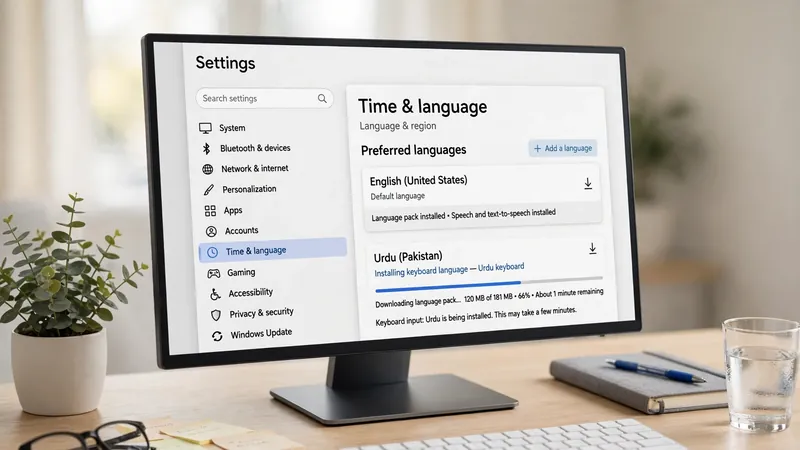
Installing the Urdu Keyboard for Windows on Windows 11 takes only a few minutes. Open Settings and select Time & Language. Click Language & Region, then choose Add a Language. Search for Urdu and select it from the list. Click Next, then Install. Windows downloads the required language files if they are missing. After installation, open the Urdu language options and confirm that the Urdu Keyboard appears under Keyboards. You can now switch between English and Urdu from the taskbar or by using the Windows keyboard shortcut.
Install on Windows 10
Open Settings and select Time & Language. Choose Language, then click Add a Preferred Language. Search for Urdu and start the installation. If Windows asks, allow it to download the language pack. After setup finishes, open the Urdu language options and verify that the keyboard layout is available. The Urdu keyboard is now ready for typing in Microsoft Word, browsers, email apps, and other Unicode-compatible programs.
Install on Windows 8 & 7
Windows 8 users can add Urdu through PC Settings or the Control Panel. Windows 7 users should open the Region and Language settings from the Control Panel. Select Keyboards and Languages, then add Urdu to the installed languages. Download the language pack if Windows recommends it. Save your changes and restart the computer if required. After setup, switch between English and Urdu using the language bar or the keyboard shortcut for quick access.
Configure Language Settings
Add Urdu as an Input Language
After installing the Urdu Keyboard for Windows, add Urdu as an input language if it is not already active. Open Settings, go to Time & Language, and select Language & Region. Choose Add a Language, search for Urdu, and install it. Windows automatically adds the Urdu input method.
Set the Default Keyboard
If you type in Urdu often, make it your default keyboard. Open the language settings and move Urdu to the top of your preferred keyboards. Windows will use the Urdu keyboard when you sign in or open supported applications.
Manage Multiple Languages
Windows lets you use several languages together. Keep English and Urdu in your preferred language list for quick access. This setup makes switching easier and supports smooth typing without changing your system language.
How to Switch Between English and Urdu Keyboards
Keyboard Shortcut
The fastest way to switch keyboards is with a shortcut. Press Windows + Spacebar to cycle through installed keyboards. Some Windows versions also support Alt + Shift or Ctrl + Shift, depending on your keyboard settings.
Language Bar
The Language Bar helps you change the active input language. It displays the current keyboard and lets you switch with one click. This option works well if you prefer using the mouse instead of keyboard shortcuts.
Taskbar Language Icon
The taskbar shows a language indicator, such as ENG or UR. Click the icon to open the list of installed keyboards. Select Urdu to start typing immediately. Switch back to English anytime without closing your current application.
Urdu Keyboard Layout Explained
Standard Urdu Layout
The standard Urdu keyboard layout follows the official arrangement supported by Microsoft Windows. Each key matches specific Urdu characters and symbols. This Unicode keyboard works well for formal writing, documents, education, and office tasks. It also provides consistent results across Microsoft Word, web browsers, email clients, and other Unicode-compatible applications.
Urdu Phonetic Layout
An Urdu Phonetic Keyboard places Urdu letters near similar English sounds. This layout feels natural for users familiar with the English keyboard. Many third-party tools offer phonetic typing, making it easier for beginners to write Urdu without memorizing the standard keyboard layout.
Choosing the Right Layout
Choose the standard layout for accuracy and official documents. Select a phonetic layout if you prefer typing by English sounds. Pick the input method that matches your experience and daily typing needs.
Common Urdu Keyboard Problems on Windows
Urdu Keyboard Not Showing
If the Urdu keyboard does not appear, check your installed languages in Settings. Confirm that Urdu is added and the keyboard layout is enabled. Restart Windows if the keyboard still does not display.
Unable to Switch Languages
If keyboard shortcuts stop working, review your language settings. Make sure both English and Urdu keyboards are installed. You can also switch languages from the taskbar or the Language Bar.
Missing Urdu Fonts
Urdu text may appear as empty boxes or incorrect symbols when the required Unicode font is unavailable. Update Windows and use Unicode-compatible fonts to display Urdu characters correctly in every application.
Wrong Characters While Typing
Wrong characters usually indicate the wrong keyboard layout. Verify that you selected the correct Urdu keyboard. If needed, remove the incorrect layout and add the preferred one again.
Language Pack Errors
Language pack errors often result from incomplete downloads or outdated Windows files. Check your internet connection, install pending Windows updates, and download the Urdu language pack again if necessary.
Tips for Better Urdu Typing on Windows
Learning a few simple habits can improve your Urdu typing speed and accuracy. First, memorize common keyboard shortcuts to switch languages quickly. Keep Microsoft Windows updated to receive the latest language improvements and security fixes. Always use Unicode-compatible fonts to display Urdu text correctly in every application. Practice typing every day to build speed and confidence with your chosen keyboard layout. Finally, organize your language preferences by keeping only the keyboards you use most. A clean language list makes switching easier and reduces typing errors. These small steps create a smoother and more productive Urdu typing experience.

Frequently Asked Questions
Does Windows have a built-in Urdu keyboard?
Yes. Windows includes a built-in Urdu keyboard that you can enable through the language settings without installing third-party software.
How do I install an Urdu keyboard on Windows 11?
Open Settings > Time & Language > Language & Region, add Urdu, and install the language pack if Windows requests it.
Can I type Urdu without installing software?
Yes. The built-in Windows Urdu keyboard lets you type in Urdu after you enable the language from Windows settings.
What is the Urdu Phonetic Keyboard?
An Urdu Phonetic Keyboard matches Urdu letters with similar English keys. It helps beginners type Urdu more easily.
Which shortcut switches keyboard languages?
Press Windows + Spacebar to switch between installed keyboards. Some systems also support Alt + Shift or Ctrl + Shift.
Why is my Urdu keyboard not working?
Check that Urdu is installed, the correct keyboard layout is selected, and Windows is fully updated.
Does Urdu typing work in Microsoft Word?
Yes. Microsoft Word fully supports Unicode Urdu typing, allowing you to create, edit, and format Urdu documents correctly.
Is the Windows Urdu keyboard Unicode?
Yes. The Windows Urdu keyboard uses Unicode, ensuring your Urdu text displays correctly across modern applications, websites, and documents.
Related Guides
Try our free Urdu Keyboard tool to type Urdu online instantly.