
Urdu Keyboard Settings
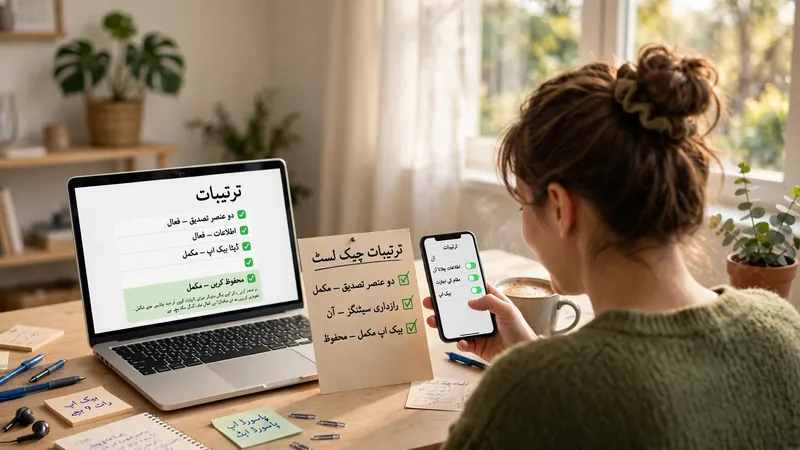
✅ Urdu Keyboard Setup Checklist
Tick each step as you complete it on your device.
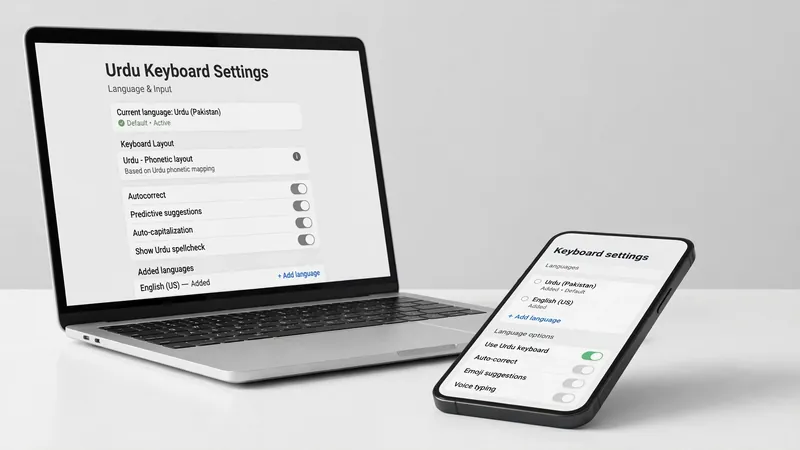
Urdu keyboard settings help you type in Urdu with the correct language and input preferences. The right settings make typing faster, smoother, and more accurate across your devices. This guide explains how to enable the Urdu keyboard, manage language settings, choose your default keyboard, and adjust regional settings for a better Urdu typing experience.
What Are Urdu Keyboard Settings?
Purpose of Urdu Keyboard Settings
Urdu keyboard settings control how your device handles the Urdu keyboard and Urdu language for text input. These settings let you select Urdu as an input language and manage how you type. They help create a smooth typing experience across supported apps and devices.
How Language and Input Preferences Work Together
Language settings tell your device which languages you want to use. Input preferences decide how you switch between them while typing. Together, they support a multilingual keyboard that lets you move between Urdu and other languages without changing your workflow.
When Users Need Urdu Keyboard Settings
You need Urdu keyboard settings when you write emails, messages, documents, or social media posts in Urdu. They also help if you use more than one language every day. Proper settings keep your preferred language ready, reduce extra steps, and make Urdu typing faster and more consistent across different applications.
Accessing Language Settings for Urdu Typing
Finding Language Settings on Your Device
Every major operating system stores Urdu language settings in its main settings menu. You can access them on Windows 11, Windows 10, Android, iPhone, and macOS. Each platform uses different menus, but they all let you manage your input language from one central place.
Understanding Language Preferences
Language preferences tell your device which languages you want to use while typing. They also control the order of available languages and keyboard options. Choosing the right preferences makes it easier to switch between Urdu and other languages during daily tasks without interrupting your work.
Managing Multiple Languages
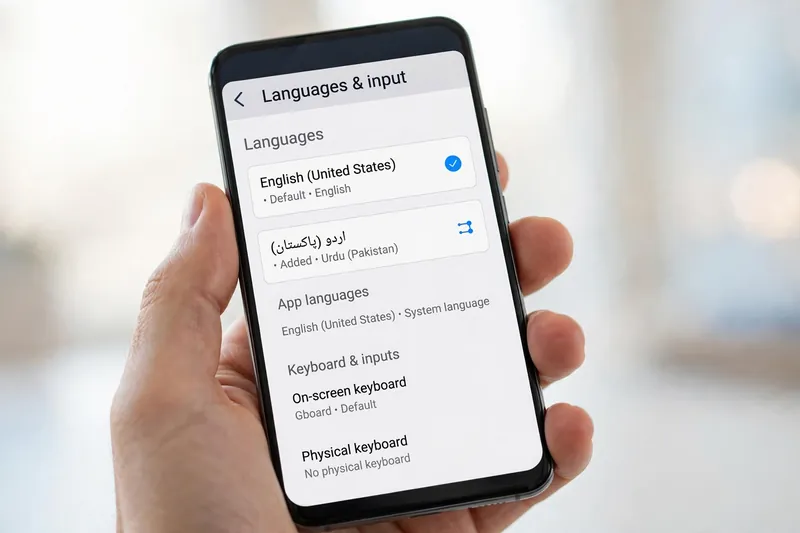
Many people type in Urdu and English every day. Your device supports multilingual typing by keeping both languages available. You can move between them whenever needed without changing your overall device language. This flexibility helps students, professionals, and bilingual users communicate more efficiently across different apps and services.
How to Enable Urdu Keyboard Settings
Adding Urdu as an Input Language
To enable Urdu keyboard settings, first add Urdu to your device’s list of languages. Open your language settings and choose Urdu as an input language. Your device then includes Urdu among your available typing options. This step prepares your Urdu input method and keeps Urdu ready whenever you need to write in the language.
Activating Urdu Keyboard Options
After adding Urdu, turn on the available keyboard option in your language settings. This action connects the Urdu keyboard settings with your preferred input method. Some devices also let you choose when the keyboard appears or how you switch between languages. Review these options and select the settings that match your daily typing habits.
Confirming Urdu Input Availability
Open any app that accepts text and check your available keyboards. Switch to Urdu and type a few words to confirm everything works as expected. If Urdu appears in your keyboard list, your Urdu typing settings are active. You can now use Urdu input across supported apps without changing your primary device language. According to official guidance from Microsoft, Google, and Apple, language settings should display the selected keyboard before you begin typing in another language.
Setting Urdu as the Default Keyboard
What a Default Keyboard Means
A default keyboard is the keyboard your device opens first when you start text input. It saves time because you do not need to switch languages each time you type. Your language preferences decide which keyboard becomes the default for everyday use.
Choosing Urdu as the Primary Input Language
If you type in Urdu most often, set the Urdu language keyboard as your default. Open your language settings and choose Urdu as the preferred keyboard for text entry. Keep your input preferences organized so your device always selects Urdu first while still allowing quick access to other languages.
Benefits of a Default Urdu Keyboard
A default Urdu keyboard creates a smoother typing experience. It reduces extra taps and keeps your preferred language ready. This setup also supports consistent text input across messaging apps, documents, emails, and web browsers. You spend less time changing settings and more time focusing on your writing. Many bilingual users choose this approach because it keeps daily communication simple and efficient.
Understanding Regional Settings and Their Role
What Regional Settings Control
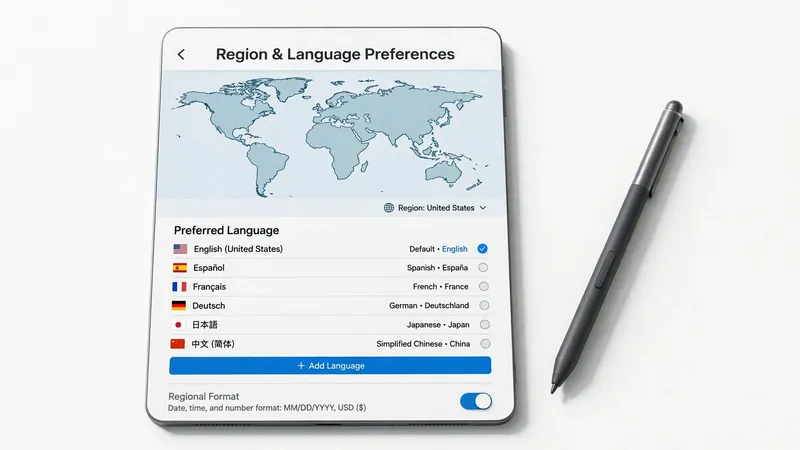
Regional settings help your device match local language and location preferences. They influence formats for dates, time, numbers, and other regional content. These settings work alongside your language settings to create a consistent experience. They support accurate language choices across different features of your operating system.
Relationship Between Region and Language Preferences
Your region and language settings work together, but they serve different purposes. The selected region controls local formats and system behavior. Your language preferences control how you read and enter text. This separation gives you more flexibility. For example, you can use Urdu while keeping another region for work or travel.
Optimizing Urdu Language Usage Through Regional Settings
Choose regional settings that match your daily needs. Then review your language settings to confirm Urdu appears as your preferred language for typing. This approach improves localization and keeps your experience consistent across supported apps. Microsoft, Google, and Apple recommend managing language and regional preferences separately because each setting controls a different part of the user experience.
Managing Input Preferences for Better Urdu Typing
Switching Between Languages Efficiently
Good input preferences make it easy to move between Urdu and other languages. Use your device’s language switch to change the input language whenever needed. This feature supports multilingual typing without interrupting your work. A smooth language switch helps you write messages, emails, and documents faster while keeping your focus on the content.
Customizing Input Preferences
Adjust your input preferences to match your daily typing habits. Choose the languages you use most and arrange them in your preferred order. This setup keeps Urdu ready for text input while preserving quick access to other languages. Clear input preferences create a cleaner typing experience and reduce unnecessary language changes during everyday tasks.
Maintaining Consistent Urdu Input Across Applications
Most modern applications use the same system language settings. Once you configure your multilingual keyboard, you can type in Urdu across browsers, messaging apps, office tools, and note-taking apps. Consistent settings create a familiar typing experience everywhere. Microsoft, Google, and Apple recommend using system-wide language preferences because supported applications automatically follow these settings for reliable Urdu typing.
Best Practices for Urdu Keyboard Settings
Keep Language Preferences Organized
Keep your language preferences simple and well organized. Remove languages you no longer use and place Urdu language near the top of your preferred list. A clear setup makes switching between languages faster and helps you maintain a smooth typing experience every day.
Use Consistent Input Settings Across Devices
Use the same input method on all your devices whenever possible. Consistent settings reduce confusion and create familiar typing habits. Whether you use a computer, tablet, or phone, matching language preferences help you move between devices without changing your workflow.
Review Settings Periodically
Check your keyboard settings from time to time, especially after major system updates. Confirm that Urdu remains your preferred typing language and that your language preferences still match your needs. Also review accessibility settings if you use features that support easier text input. Microsoft, Google, and Apple recommend keeping language and accessibility options up to date to ensure a consistent and reliable typing experience.
Frequently Asked Questions
How do I enable Urdu keyboard settings?
Open your device’s language settings and add Urdu as an input language. Then choose the Urdu keyboard from your available typing options.
Can I make Urdu my default keyboard?
Yes. Most devices let you select Urdu as your default keyboard. This setting opens the Urdu keyboard automatically when you start typing.
What are input preferences?
Input preferences control how your device handles typing languages. They also determine the order of available keyboards and language switching options.
Do regional settings affect Urdu typing?
Regional settings mainly control local formats, such as dates and time. They support your language settings but do not replace your preferred typing language.
Can I switch between Urdu and English easily?
Yes. Modern devices include a language switch that lets you move between Urdu and English in seconds. This feature supports fast multilingual typing.
Are Urdu keyboard settings available on all major devices?
Yes. Windows, Android, iPhone, and macOS all support Urdu keyboard settings. The menu names may differ, but each platform lets you manage language preferences.
Why should I set Urdu as my default language?
If you type in Urdu every day, a default Urdu keyboard saves time. It reduces extra steps and keeps your preferred language ready for text input.
How do language preferences improve typing?
Language preferences organize your typing experience. They help your device remember your preferred languages, support smooth switching, and provide consistent text input across supported applications.
Conclusion
Urdu keyboard settings help you create a faster and more comfortable typing experience. The right language settings, input preferences, default keyboard, and regional settings work together to support accurate text input. Review these options and adjust them to match your daily needs. A well-configured setup saves time, improves consistency, and makes switching between languages simple across your devices.
Related Guides
- Urdu Keyboard Not Working? 10 Proven Fixes That Solve Most Typing Problems
- Urdu Keyboard Shortcuts
- Urdu Keyboard for iPhone: Complete Setup Guide
Try our free Urdu Keyboard tool to type Urdu online instantly.